This article explains how ticket search works in Freshdesk and how to make sure your tickets are easy to find.
What is searchable in Freshdesk?
Freshdesk's built-in search indexes a limited set of fields. Currently, the following are searchable:
| Field | Searchable | Notes |
|---|---|---|
| Subject | ✅ Yes | Full-text search available. |
| Description | ✅ Yes | Full-text search available. Use this field to include all relevant details. |
| UID | ❌ No | If the UID field is filled in, it is automatically appended to the ticket subject after the ticket is submitted, making it searchable. |
⚠️ Please note: Searching by custom fields (other than Subject and Description) is not available in Freshdesk. This is a current limitation of the platform, not our portal. We understand this can be confusing and we appreciate your patience.
Using the UID field for easy search
The UID field is a special identifier field available on the ticket submission form. Here is how it works:
- If the UID field is filled in before submitting the ticket, the system will automatically append the UID value to the ticket subject after submission.
- Because the UID is now part of the ticket subject, you can search for it directly in the Freshdesk search bar.
? Tip: Always fill in the UID field if you need to link the ticket to a specific user, order, or reference ID. This is the most reliable way to find a ticket quickly.
Using the Description field
The Description field is also fully indexed by Freshdesk's search engine. Any keywords, reference numbers, account IDs, or other details you include in the description will be searchable.
Best practices for the Description field:
- Include all relevant identifiers (e.g. account number, transaction ID, email etc).
- Use clear, descriptive language that will be easy to search for later.
How to search for a ticket
- Log in to the Freshdesk portal.
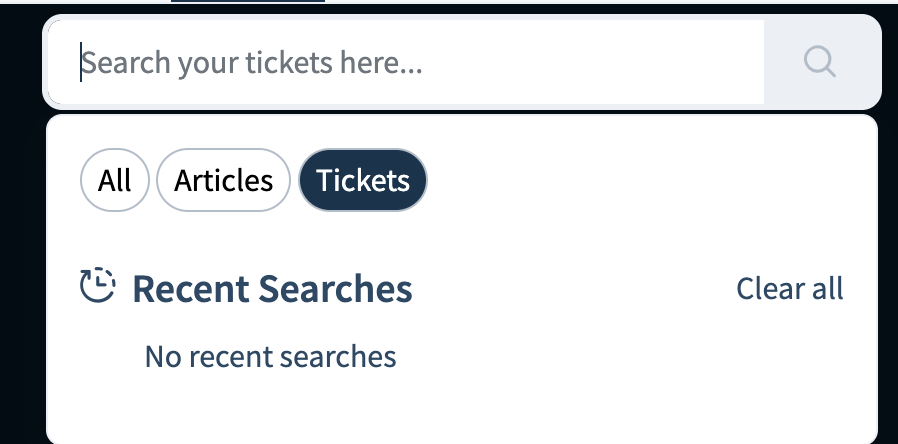
- Click the Search in the top navigation bar.
- Type the keyword that appears in the ticket subject or description.
- Hit Enter or click Search icon.
- Results matching your query will be listed. Click any ticket to open it.
Was this article helpful?
That’s Great!
Thank you for your feedback
Sorry! We couldn't be helpful
Thank you for your feedback
Feedback sent
We appreciate your effort and will try to fix the article