This article walks you through the B2B Support portal: how to access it, what you can do there, and how to get help as efficiently as possible.
1. Accessing the Portal
Logging in
If your company has been granted access, you will receive an invitation email with a link to set up your account. Open the link and follow the on-screen instructions to set your password and log in.
Didn't receive the invitation email?
If you were invited to the portal but the email never arrived (check your spam folder first), you can still gain access using the Reset Password flow:
- Go to the portal login page.
- Click Forgot password?
- Enter the email address your account was registered with.
- You will receive a password reset link. Use it to set a new password and log in.
2. Portal Home — What You Can Do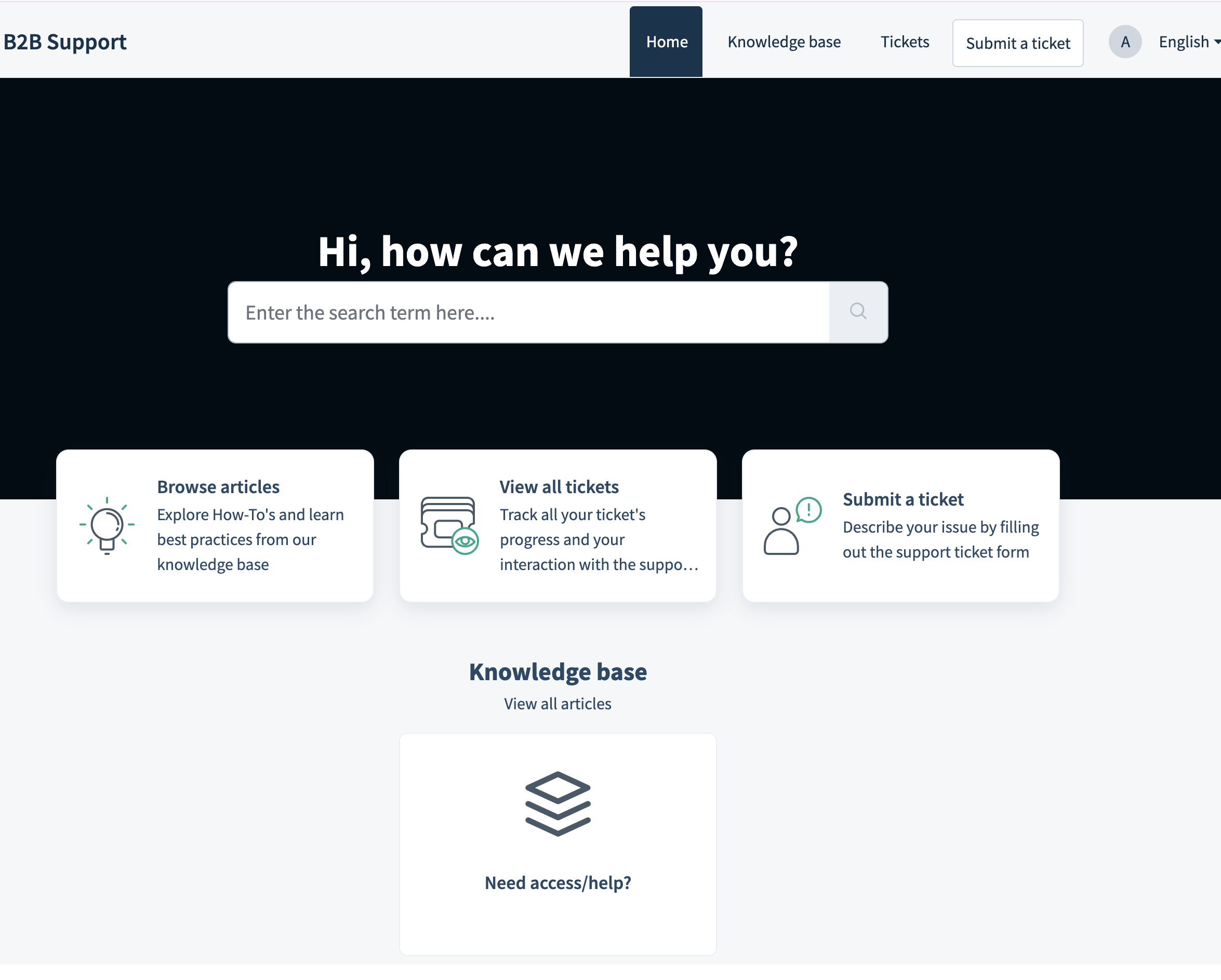
After logging in you will land on the Home page. From here you can:
| Feature | Description |
|---|---|
| Browse articles | Explore how-to guides and best practices in our Knowledge base. Many common questions are answered here before you need to raise a ticket. |
| View all tickets | Track the status of your existing tickets and your full interaction history with the support team. |
| Submit a ticket | Open a new support request by filling out the ticket form. |
| Finance support chat | A live chat widget (bottom-right corner of the page) for quick communication with the Finance support team. |
3. Submitting a Ticket
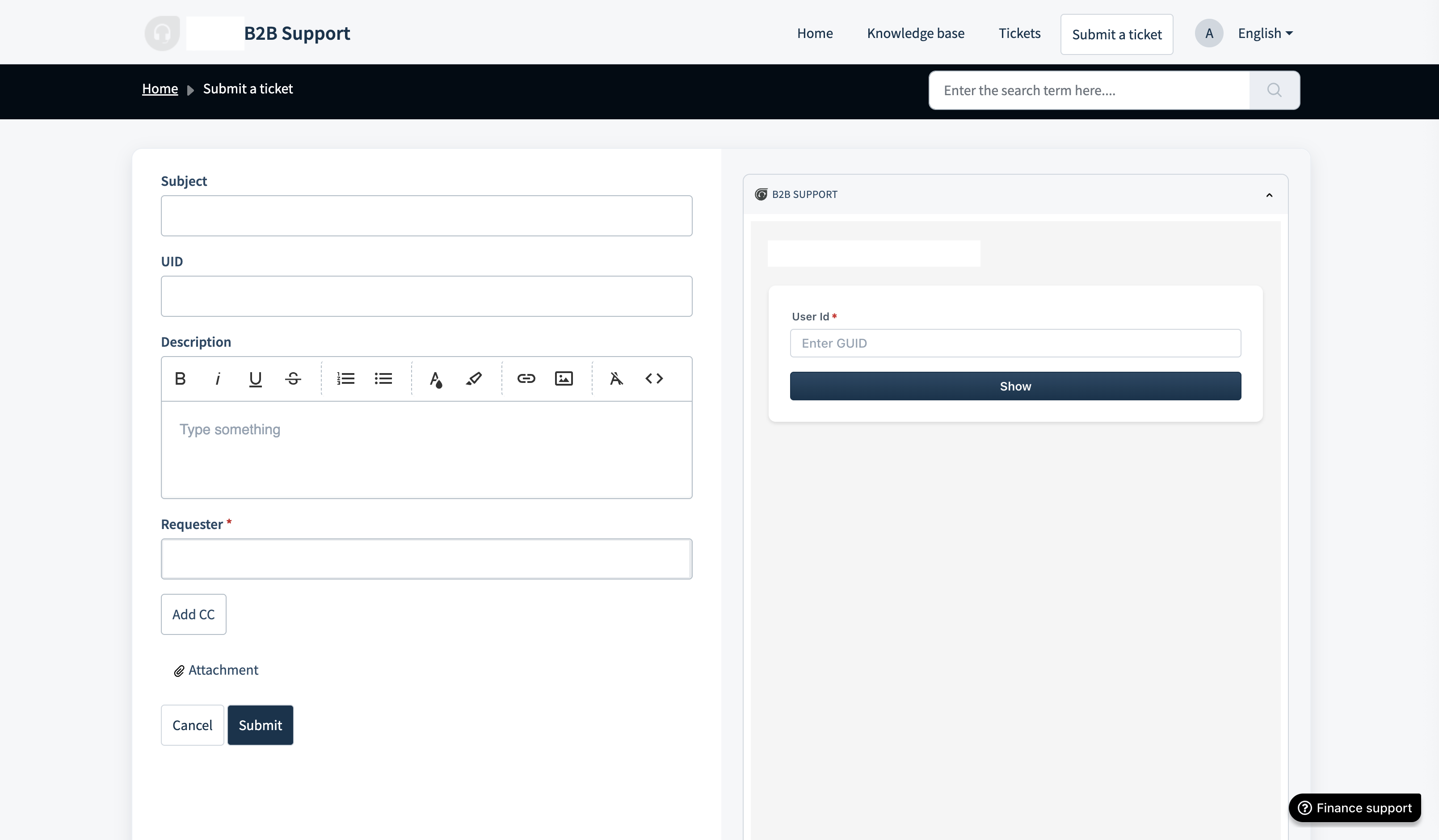
Click Submit a ticket in the top navigation or from the Home page card. The ticket form contains the following fields:
| Field | Description |
|---|---|
| Subject | A short, clear title for your request |
| UID | A unique identifier (e.g. a user ID, account ID, or reference number) related to the request. If filled in, the UID will be automatically appended to the ticket subject after submission, making it easy to search for the ticket later. See the How to search for tickets article for more details. |
| Description | A full description of your issue or request. The description supports rich text formatting (bold, italic, lists, links, images, code blocks, etc.) |
| Requester | Your email address or name. This identifies who submitted the ticket. |
| CC | Click Add CC to copy additional colleagues on all ticket updates. |
| Attachment | Attach screenshots, logs, or documents to help illustrate your issue. |
Once you have filled in all relevant fields, click Submit. You will receive a confirmation email with your ticket number.
4. The B2B Support Panel
When you open the ticket submission form, you will notice a panel on the right-hand side labelled B2B Support. This is an integrated assistant tool designed to help agents quickly understand and resolve identity verification issues. The panel is actively being developed, and new features are added regularly, so what you see today may evolve over time.
The panel consists of the following sections:
| Section | Description | Example |
|---|---|---|
| AI Summary | Provides an automatic, AI-generated summary of the verification case — what went wrong and why resubmission is required. Displayed as a highlighted card at the top of the panel. | 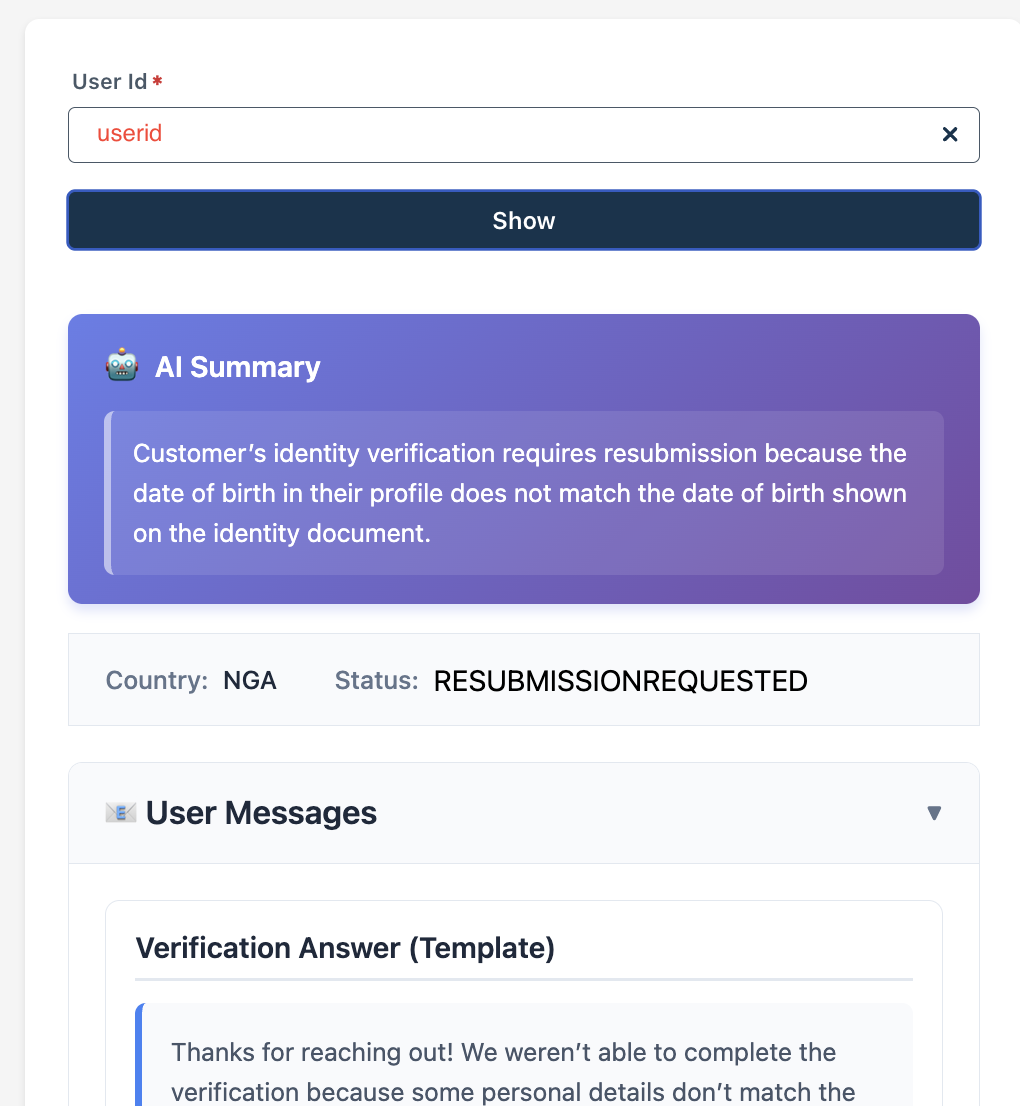 |
| Country & Status | Shows the customer's country code and the current verification status (e.g. RESUBMISSIONREQUESTED, REQUIRESACTION). | 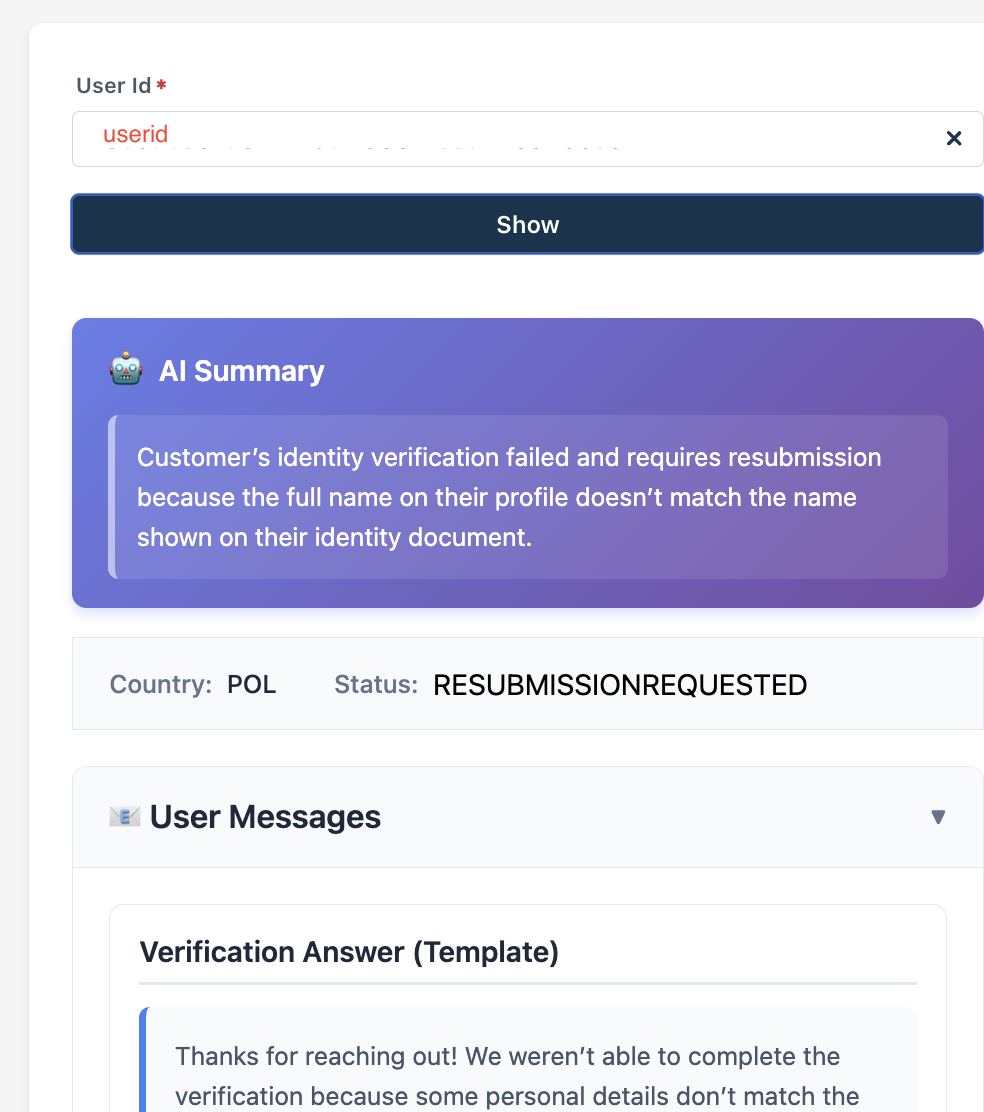 |
| User Messages | Contains pre-written message templates: a Verification Answer (Template) explaining the issue to the customer, and a Review Message (Sent to User) with specific instructions on what the customer needs to correct (e.g. name, date of birth, address). Messages may be localised based on the customer's language. | 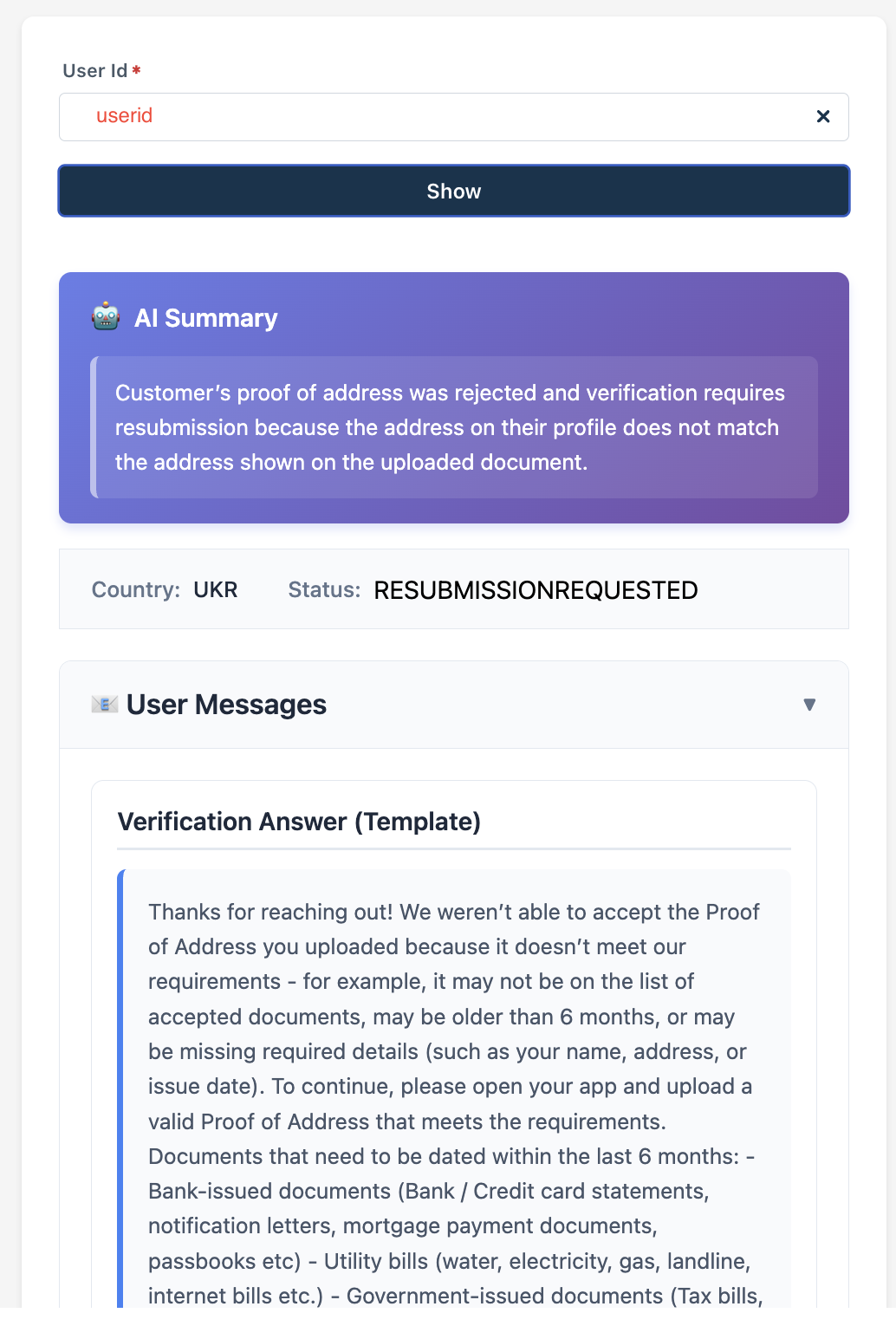 |
| Confidential (Agent Only) | Visible only to agents. Includes: Documents Review Status (checklist showing which documents passed — Identity, Selfie, Questionnaire, Proof of Residence), Technical Review Notes (the specific reason for rejection), and Reject Labels / Button IDs (internal labels used for categorising the rejection type). | 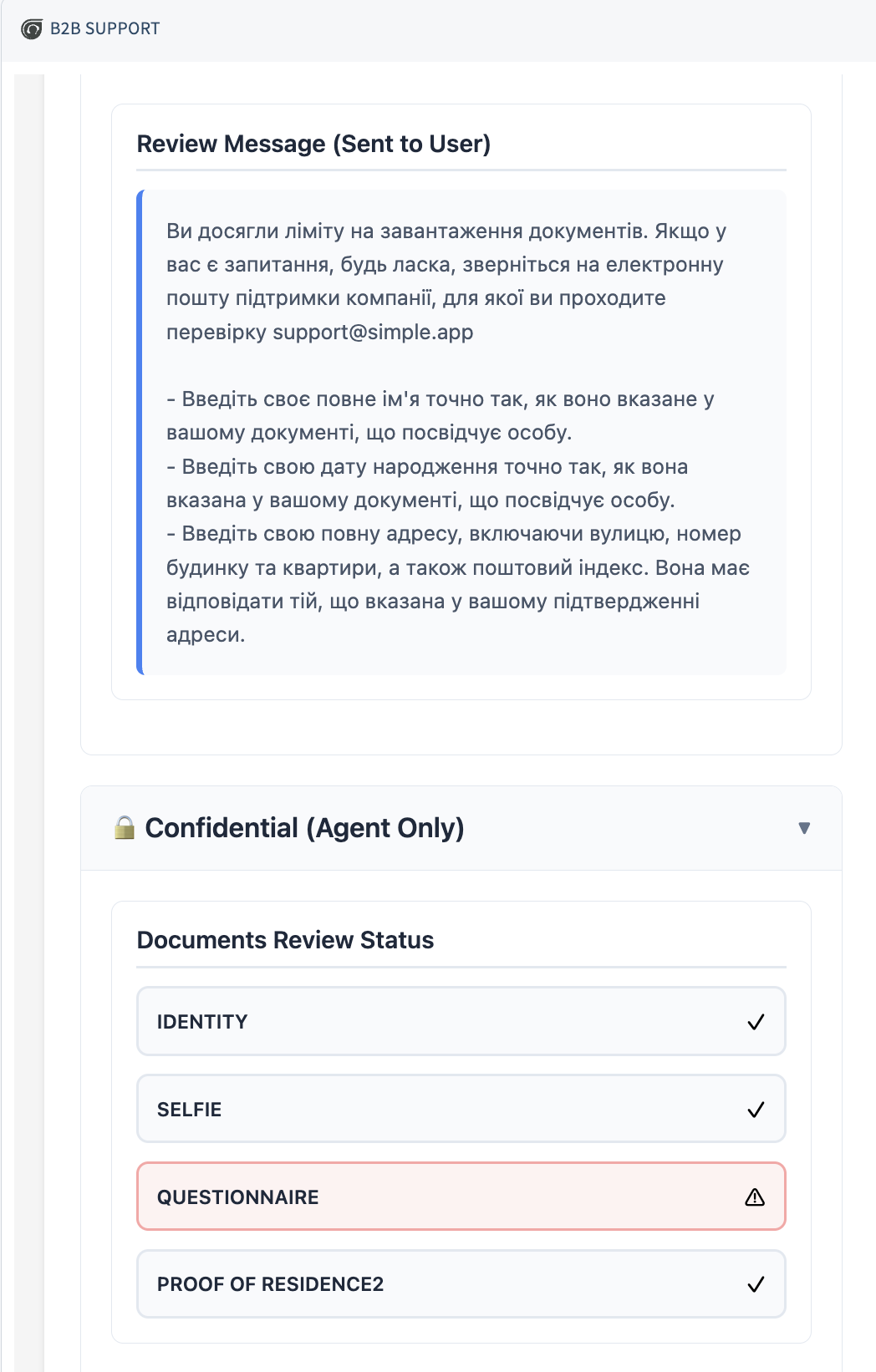 |
| Agent Actions — Data Mismatch | Displays detected mismatches between the customer's profile data and their submitted documents. Each mismatch (e.g. DATAMISMATCH_FULLNAME, DATAMISMATCH_DOB, DATAMISMATCH_ADDRESS) shows the current user info vs. the document info side by side, with a "Set as in document" button that allows the agent to correct the profile data to match the document. | 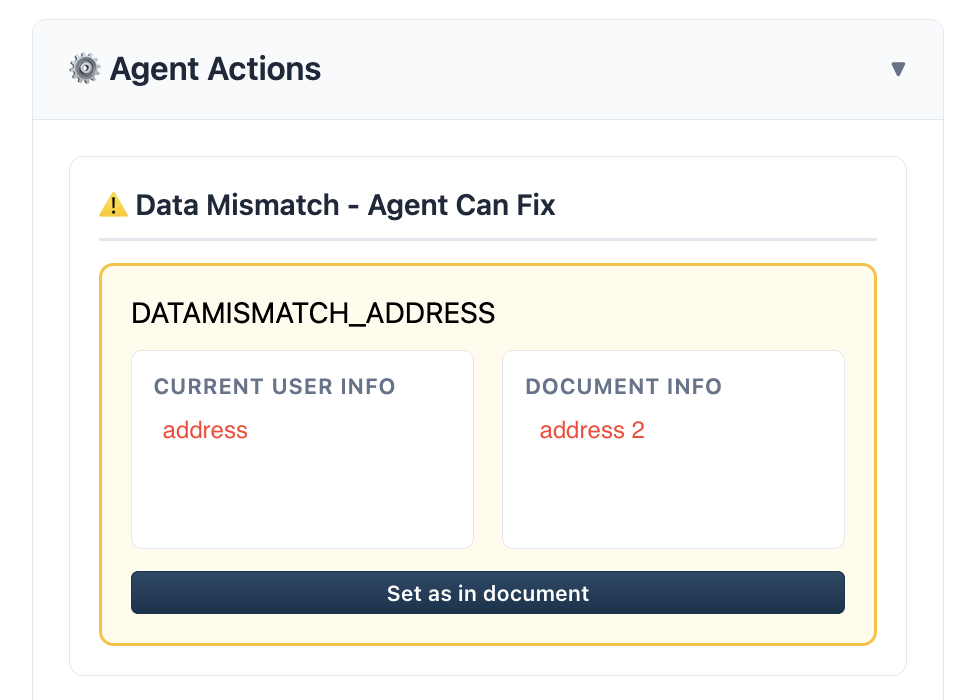 |
| Ask AI | An input field where agents can type a custom question about the case for AI analysis. Useful for getting additional context or clarification beyond the auto-generated summary. | IN DEVELOPMENT |
| Generate Document Upload Link | Generates a secure link that can be shared with the customer so they can upload updated or corrected documents directly. | 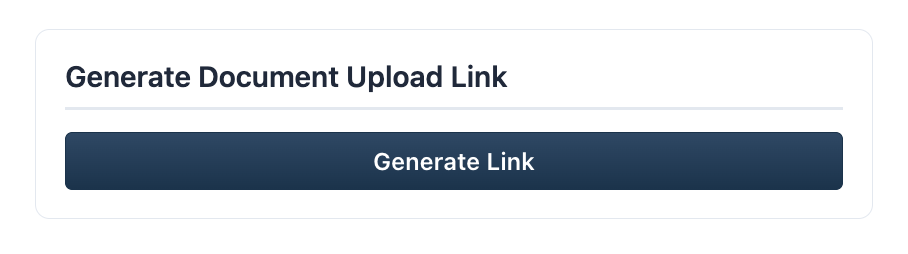 |
Currently, the assistant panel can:
- Look up a user by UID (GUID) — Enter a User ID (GUID) in the User Id field and click Show to retrieve details about that specific user or account.
- AI Summary — Generate an AI-powered summary of the user's recent activity or ticket history, giving the support team faster context before diving into the details.
5. Managing Tickets After Submission
Adding comments
Once a ticket has been submitted, you can continue the conversation directly within the ticket. Open the ticket from the Tickets view and use the comment box to add additional information or reply to the support team. All parties on the ticket (including CC recipients) will be notified by email.
6. Finance Support Chat
For quick queries, you can reach the Finance support team directly via the live chat widget in the bottom-right corner of any portal page (labelled Finance support). This is ideal for time-sensitive questions that don't require a formal ticket.
Was this article helpful?
That’s Great!
Thank you for your feedback
Sorry! We couldn't be helpful
Thank you for your feedback
Feedback sent
We appreciate your effort and will try to fix the article